How To Install NodeJS on cPanel/WHM

In this article we will cover all steps you need to do to install NodeJS on cPanel/WHM server using EasyApache4.

In this article we will cover all steps you need to do to install NodeJS on cPanel/WHM server.

About cPanel/WHM

cPanel/WHM is one of the most popular, non-free control panels. It is widely used by web hosting companies, system admins and web developers as it offers an intuitive interface for managing a Linux server, websites, ftp and email accounts.

About NodeJS

Node.js is an open-source Javascript runtime environment that allows developers to create front- and back-end applications. It’s operating system agnostic, meaning that it can be installed on any operating system; Windows, Linux and MacOS.

Steps to Install NodeJS on cPanel

For the installation of NodeJS on cPanel we will use the EasyApache4 tool that you can find on WHM GUI. It’s the fastest way to install NodeJS and does not require experience on linux server commands.

Step 1 – Login to cPanel/WHM

Login to your cPanel/WHM by browsing to your IP address or hostname followed by :2087 or /whm.

Example: https://mydomain.com:2087 or https://IP_ADDRESS/whm

Step 2 – Go to EasyApache4

From the top left search field, search for EasyApache4 and click the related entry.

Step 3 – Customize EasyApache4

At the top of the page you will find a section called “Currently Installed Packages”. This is the profile that contains your currently installed packages, which you need to customize in order to install nodejs.

Step 4 – Install NodeJS from Additional Packages

From the left sidebar, click the “Additional Packages” tab, search for NodeJS and toggle the related entry. Then click “Next” to proceed.

Step 5 – Review & Provision Changes

The last step includes a revision of all existing packages that will be installed upon provisioning. Review them carefully to ensure that no important packages will be added or removed due to dependency reasons.

Final Step – EasyApache4 Provisioning

Once you click “Provision” the process will start and you will see something as the following screenshot:

Wait for some time and then you will get a message that the provisioning process has been completed, as shown below.

Click “Done” and you are all set!

How To Generate CSR (Certificate Signing Request) on Linux Server

In this article we will demonstrate the steps to generate a Certificate Signing Request (CSR) on a Linux server.

If you are new to the SSL certificates world, then this guide will help you go through the generation of a CSR, which is the first step towards acquiring a commercial SSL certificate.

A Certificate Signing Request (commonly known as ‘CSR’) contains information that the Certificate Authority (known as ‘CA’) will use to provision your SSL certificate.

What information do I need to provide during CSR generation?

The information required by the CA during a CSR generation is the following:

Country (C)Two-letter country code where your organization is located.

State/County/Region (S)The state/region where your organization is located. Type the full name of your state/region – must not be abbreviated.
City/Locality (L)The city where your organization is located. Type the full name of your city – must not be abbreviated.
Organization (O)The legal name of your organization. Enter the full legal name of your business, including any suffixes. Example: My Private Company LTD.

For EV and OV SSL Certificates, this information is verified by the CA and included in the certificate.
Organizational Unit (OU)The division of your organization handling the certificate. For example: IT Department.
Common Name (CN)This is the most important field. Enter the Fully Qualified Domain Name (FQDN) which you wish to be protected under the SSL certificate.

If you are generating a CSR for a wildcard certificate, then include an asterisk. Example: *.mybusinessdomain.com.
Email AddressEmail address used to contact your organization.
Table with information required during CSR generation

How To Create a Certificate Signing Request (CSR) via command line on Linux server

It is important that you generate the CSR on the same machine that you will be installing the SSL Certificate. The CSR generation process will also create your certificate’s key file which must exist on server where the SSL certificate will be installed.

As a root user connect via SSH on your linux server and type the following command (we provide various commands depending on the Linux distribution you are using):

For Debian/Ubuntu:

root@localhost:~$ apt install openssl

For CentOS/AlmaLinux/RHEL:

root@localhost:~$ yum install openssl

Once openssl is installed, proceed with the following command which is the same regardless of what Linux distro you are using:

root@localhost:~$

$ openssl req -new -newkey rsa:2048 -nodes -keyout mydomain.com.key -out mydomain.com.csr

Make sure you replace “mydomain” with a descriptive name so you can easily identify it in the future.

Upon typing the previous command, you will be prompted to enter the information as described in the Table above.

Sample Output:

CSR Generation Required Information Input

Note: You are not required to enter a “challenge password”, so just hit Enter to skip the question.

Once all information is entered, two files will appear on your working directory; .csr and .key.

The content of the .csr file must be provided during your SSL certificate order. The .key file must remain on server and never share it with anyone!

NetShop ISP Shortlisted as Best Hosting Provider of the Year at SiGMA Balkans/CIS 2023 Awards

NetShop ISP, a leading hosting provider established in 2004, has been selected as a finalist for the prestigious “Best Hosting Provider of the Year” award at the SiGMA Balkans/CIS 2023 Awards.

NetShop ISP, a leading hosting provider established in 2004, has been selected as a finalist for the prestigious “Best Hosting Provider of the Year” award at the SiGMA Balkans/CIS 2023 Awards, showcasing their commitment to delivering top-quality hosting solutions and exceptional customer service.

The SiGMA Balkans/CIS Awards recognize excellence in the iGaming and tech industries within the Balkans and CIS regions. NetShop ISP’s nomination underscores the company’s continuous dedication to providing outstanding performance and innovation.

Stefano Sordini, CEO at NetShop ISP, comments “NetShop ISP stands out for its advanced hosting solutions that cater to the dynamic requirements of modern businesses and especially the fast-paced igaming industry. By leveraging the talent of our people, along with adopting the latest technologies and tools in cloud computing and cyber security, we manage to stay ahead of the competition and deliver unparalleled hosting solutions to b2c and b2b customers.

The recognition of being shortlisted for the “Best Hosting Provider of the Year” award at the SiGMA Balkans/CIS 2023 Awards highlights NetShop ISP’s commitment to industry leadership. “Looking ahead“, Stefano Sordini continues, “we remain committed to innovation and customer satisfaction. The nomination for this particular award serves as motivation to continue pushing boundaries and raising the bar for hosting excellence.

The voting window for Balkans/CIS Gaming Awards closes on the 21st of August 2023, followed by the Awards ceremony on the 4th of September.

We appreciate your vote for NetShop ISP as Best Hosting Provider of the Year!

How To Install HAProxy on Debian 11 Server

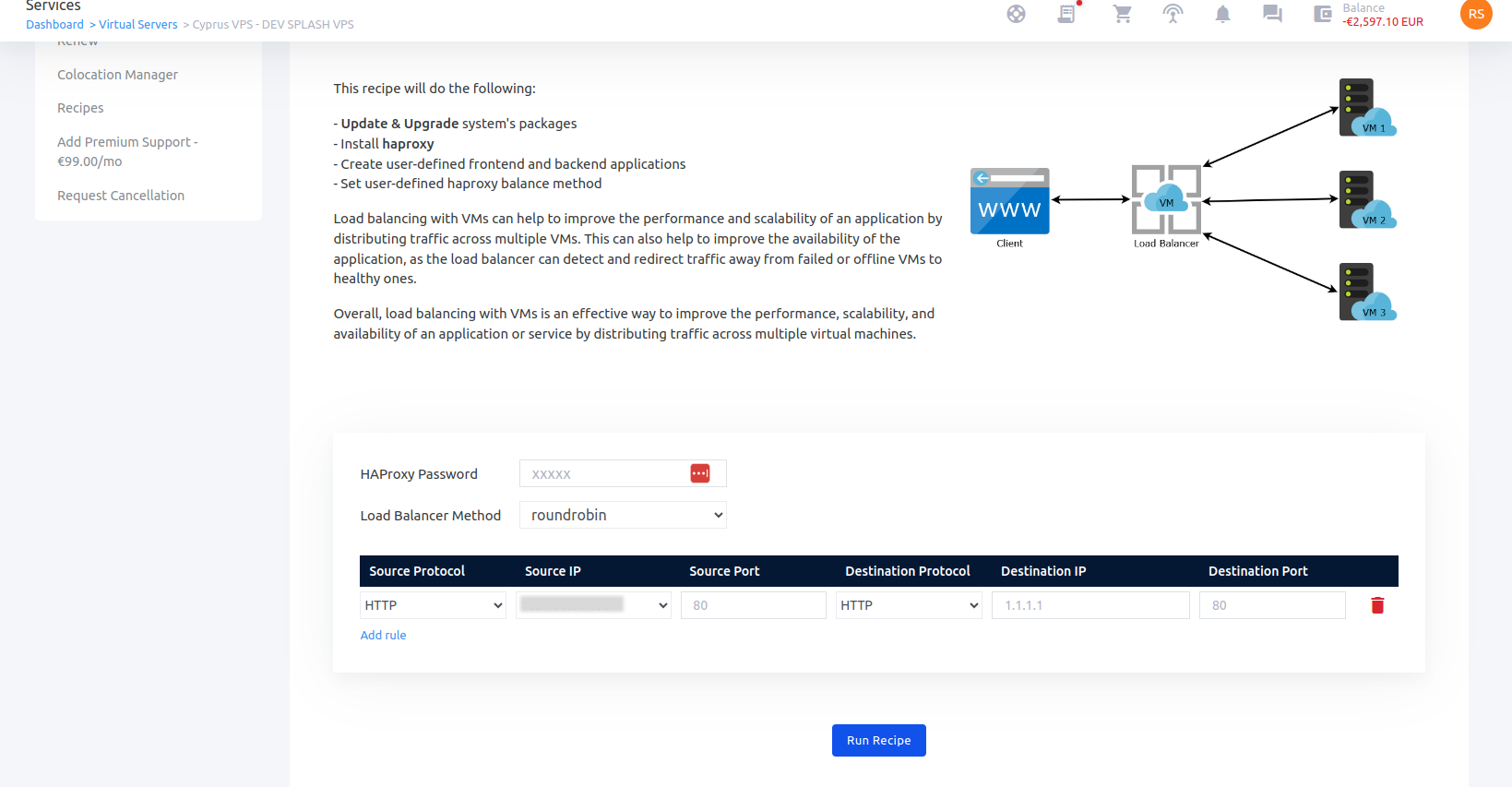
In this article we will demonstrate how to easily setup HAProxy on a Debian 11 Server with the basic configuration, which you can then optimize or extend as per your bespoke requirements.

HAProxy is a high-performance, open source load balancer and reverse proxy for TCP and HTTP-based applications. Using HAProxy, one can distribute workloads and improve the performance of websites and web-based applications with faster response times, higher availability and increased throughput.

HAProxy, when combined with DNS Geolocation Diversion, can load balance the traffic to your website/application so users from different areas of the world will be served from a regional HAProxy server and the request will then be forwarded to a backend server (e.g. another web server or a database).

The advantage in this kind of setup is that you can avoid the bottleneck of a single web server handling all the requests & traffic by itself. Secondly, by combining a web farm of HAProxy instances with DNS Geolocation is that you can serve different content or rules to specific regions of the world, as per your business requirements.

In this article we will demonstrate how to easily setup HAProxy on a Debian 11 Server with the basic configuration, which you can then optimize or extend as per your bespoke requirements.

Steps to Install HAProxy on Debian 11

HAProxy is pretty useless when used in one server. So in this example we will install it on two Debian servers which we will then configure with roundrobin balancing.

Any command you see further below must be executed on both/all of your servers.

Step 1 – Update System

Execute the following command to install and use the latest available software packages on your Debian system.

root@localhost:~$ apt update -y
root@localhost:~$ apt upgrade -y

Once completed, reboot the server as follows:

root@localhost:~$ reboot
or
root@localhost:~$ shutdown -r now

Step 2 – Install Apache (optional)

This step is optional as you may want to use HAProxy without Apache. However, for the purpose of demonstrating the successful installation and usage of HAproxy we will install and configure Apache as follows.

root@localhost:~$ apt -y install apache2

Once apache2 is installed, run the following command to insert a pre-defined message in index.html. This will help us understand the HAProxy server that is used every time we will be refreshing our domain.

Server 1:

root@localhost:~$ echo "Server1 says Hello" | sudo tee /var/www/html/index.html

Server 2:

root@localhost:~$ echo "Server2 says Hello" | sudo tee /var/www/html/index.html

Step 3 – Install and Configure HAProxy on Debian 11

Run the following command on both servers to install haproxy:

root@localhost:~$ apt install haproxy -y

Now, lets configure HAproxy to use the roundrobin balance mode between the two servers.

Open the file /etc/haproxy/haproxy.cfg and insert the following configuration. Then save and close your file.

frontend haproxy_apache_front
        bind *:80

        default_backend    haproxy_apache_backend

        option             forwardfor
  

backend haproxy_apache_backend                                                                                                                     
        balance            roundrobin

        server             backend01 10.10.10.111:80 check
        server             backend02 10.10.10.112:80 check

Now, restart the haproxy on both servers as follows:

root@localhost:~$ systemctl restart haproxy

Let’s test our creation! For the purpose of this tutorial, our Apache configuration was setup with vhost “haproxy.netshop.global”.

Output from HAproxy Server 1

Then reload the page a few times and you should be seeing the message from the 2nd server. This means that HAProxy with roundrobin balance mode work!

Output from HAProxy Server 2

Success! Stay tuned for more HAProxy tutorials with advanced HTTP and TCP configurations!

How To Install MySQL 5.7 on AlmaLinux 8

In this article we will demonstrate the steps you need to perform on your Almalinux 8 server to install MySQL 5.7.

In this article we will demonstrate the steps you need to perform on your Almalinux 8 server to install MySQL 5.7.

Although the current stable version of MySQL is 8.0, we decided to publish this article anyway as there is an increased demand for installing MySQL 5.7 on new Linux distributions such as Almalinux 8.

Steps to Install MySQL 5.7 on AlmaLinux 8

Follow the next steps to complete successfully the installation of MySQL 5.7 (community edition) on your Almalinux 8 server.

Step 1. Update your system

root@localhost:~$ dnf update -y

Once the update completes, reboot your server as follows:

root@localhost:~$ shutdown -r now

Step 2 – Add the Enterprise Linux 7 Repository for MySQL 5.7

By default, AlmaLinux 8’s repository contains the MySQL 8.0 packages. Therefore, we need to add the EL7 repository in order to install MySQL 5.7. Copy the following command and paste it on your server’s terminal:

root@localhost:~$ tee /etc/yum.repos.d/mysql-community.repo<<EOF
[mysql57-community]
name=MySQL 5.7 Community Server
baseurl=http://repo.mysql.com/yum/mysql-5.7-community/el/7/\$basearch/
enabled=1
gpgcheck=0

[mysql-connectors-community]
name=MySQL Connectors Community
baseurl=http://repo.mysql.com/yum/mysql-connectors-community/el/7/\$basearch/
enabled=1
gpgcheck=0

[mysql-tools-community]
name=MySQL Tools Community
baseurl=http://repo.mysql.com/yum/mysql-tools-community/el/7/\$basearch/
enabled=1
gpgcheck=0
EOF

Once done, run the following commands to disable the default mysql AppStream modules:

root@localhost:~$ dnf remove @mysql
root@localhost:~$ dnf -y module reset mysql
root@localhost:~$ dnf -y module disable mysql

Step 3 – Install MySQL 5.7 on AlmaLinux 8

As we have completed preparing our environment for MySQL 5.7, we now proceed to the installation part.

Execute the following command to disable the MySQL 8.0 repo:

root@localhost:~$ dnf config-manager --disable mysql80-community

Now, enable the MySQL 5.7 repo:

root@localhost:~$ dnf config-manager --enable mysql57-community

Finally, let’s install MySQL 5.7 using the following command:

root@localhost:~$ dnf install mysql-community-server -y

That should do the job! To verify the success of your MySQL 5.7 installation, check the version by issuing the following command:

root@localhost:~$ rpm -qi mysql-community-server

Sample Output:

MySQL 5.7 verify installed version on AlmaLinux 8

It’s time to proceed with configuring MySQL 5.7 on the server in order to start using it properly.

Step 4 – Configure MySQL 5.7 on AlmaLinux 8 Server

Start the mysql service and enable it to auto-start on boot, using the following commands:

root@localhost:~$ systemctl start mysqld
root@localhost:~$ systemctl enable mysqld

Now, execute the following command to retrieve the temporary password for root, as generated using the installation process:

root@localhost:~$ grep 'A temporary password' /var/log/mysqld.log | tail -1

A sample output will be this:

2022-01-19T23:03:58.688374Z 1 [Note] A temporary password is generated for root@localhost: 4*De@eF^9abG

Now that we have the temporary root password, we proceed to the last configuration steps of MySQL 5.7.

root@localhost:~$ mysql_secure_installation

You will be asked to enter the current password (in our example that is 4*De@eF^9abG) and then you will be asked to set a new mysql root password.

Then, press “Y” when prompted as follows:

Do you wish to continue with the password provided?(Press y|Y for Yes, any other key for No) : Y
Remove anonymous users? (Press y|Y for Yes, any other key for No) : Y Disallow root login remotely? (Press y|Y for Yes, any other key for No) : Y Remove test database and access to it? (Press y|Y for Yes, any other key for No) : Y
Reload privilege tables now? (Press y|Y for Yes, any other key for No) : Y

Congratulations! Following the above simple steps we have demonstrated how to install MySQL 5.7 on AlmaLinux 8 server!

How To Use maldet to Scan & Remove Malware on Linux Server

In this article we will demonstrate useful maldet commands for malware scanning and removal on a Linux server.

Following our previous guide on how to install maldet on linux server, in this article we will demonstrate some useful maldet commands for detecting and quarantining/removing malware.

Remember, that, depending on the structure of your filesystem and how deep your scanning will go, maldet may consume considerable amount of resources, so use with caution!

Generally, the steps you need to follow on a typical day is Scan the server/directories, Analyze the results, and Action (Remove/Quarantine files) if needed.

Scan Specific Files/Folders with maldet

Use the following command if you want maldet to scan recursively the entire directory under /var/. This means files under /var/, sub-directories such as /var/www/html/, and so on.

root@localhost:~$ maldet -a /var/

Important: Depending on the size of the directory you wish to scan, and the number of sub-folders and files under that directory, maldet can take a significantly long time to complete which may result in server’s memory exhaustion.

Check maldet Scan Report

You can view the full scan report using the following command. Replace <Scan_ID> with the ID of the scan which will be provided as soon as maldet completes its scanning process.

root@localhost:~$ maldet -e <Scan_ID>
or
root@localhost:~$ maldet --report <Scan_ID>

A sample of the provided report is shown below.

Maldet Scan Report Sample Output

Remove Malicious Files Detected by maldet

Assuming your maldet scan identified malware or files with malicious code, these will be counted as “Hits” in maldet’s scan report.

You can remove them by executing the following command – make sure you replace <Scan_ID> with the correct scan report id.

root@localhost:~$ maldet -q <Scan_ID>
or
root@localhost:~$ maldet --quarantine <Scan_ID>

It’s preferred using the quarantine option to remove malicious files, as this will allow you to restore files that may have been wrongly identified as malware (known as false positives).

You can do so by executing the following command:

root@localhost:~$ maldet -s folder/file
or
root@localhost:~$ maldet --restore folder/file

That’s it! In this article we have demonstrated the commands to scan your linux server with maldet, view the scan report, delete the malicious files identified by a scan and restore files/folders from a specific scan job.

How To Install maldet Malware Scanner on Linux Server

In this article we will show the steps to install maldet open-soruce malware detection and removal software on a linux server.

Maldet (Linux Malware Detect) is a free malware scanner for Linux systems developed by R-FX NETWORKS and it’s available under the GNU GPLv2 license.

Maldet generates unique signatures which, in combination with data retrieved from edge intrusion detection systems, are used to detect malware threats in Linux servers. It acts as both a malware scanner and removal utility which can run on a schedule (via cronjob) and/or on demand.

In this article we will show the steps to install maldet software on a linux server.

Important to Know Before Maldet Installation

Maldet is a quite a resource-demanding utility so, based on our own experience, we are providing you a list of things you need to know and do, prior start using maldet on your linux server.

  1. Maldet should run on virtual or dedicated servers with minimum 4 Cores and 4 GB RAM. We have repeatedly tested maldet on virtual machines with lower specs and the result was the VM to crash
  2. If you are concerned about your server’s resources when maldet is running we recommend that you configure maldet via cronjob to run, at least, on a weekly basis.
  3. For a holistic, pro-active server security assurance, we recommend that you install and use maldet along with other security software (e.g. ossec, chrootkit, etc).

Steps to Install Maldet on Linux Server

Proceed to the next steps after you have established SSH connection to your server via root or a sudo account. For the purposes of this tutorial, commands are to be executed from “root” account on a Linux CentOS server. Commands for Ubuntu, Debian and other Linux distributions may differ.

Step 1. Download maldet from Official Source

Execute the following command to download the latest stable maldet script. We will use the -P parameter so the files is downloaded in /usr/local/src/ directory of our server.

root@localhost:~$ wget -P /usr/local/src/ http://www.rfxn.com/downloads/maldetect-current.tar.gz

Step 2. Extract maldet archive

Run the command below to extract the tar.gz file from Step 1.

root@localhost:~$ tar -zxvf /usr/local/src/maldetect-current.tar.gz

As soon as the files are extracted, a new folder will be created with name maldetect-* where * is the software version.

Step 3. Install maldet

Enter the directory of extracted archive and run the installer by executing the following command:

root@localhost:~$ cd maldetect-* && ./install.sh

Congratulations! You have installed maldet scanner is now installed on your linux server.

Ready to run maldet malware scanner for the first time? Follow our step-by-step guide on how to use maldet scanner on Linux >>

NetShop ISP Celebrates 19 Years of Leadership in the Hosting Services Industry

NetShop ISP, a global leader in web hosting and infrastructure solutions, proudly announces its 19th company anniversary (17th July 2023)

[Larnaca, Cyprus – 17th July 2023] NetShop ISP, a global leader in web hosting and infrastructure solutions, proudly announces its 19th company anniversary. Since its inception in 2004, NetShop ISP has been at the forefront of the hosting services industry, revolutionizing the way businesses approach their online presence.

Over the past 19 years, NetShop ISP has consistently delivered exceptional web hosting services, transforming the hosting landscape with its innovative solutions and unwavering commitment to customer satisfaction. With a comprehensive range of products and services, including shared web hosting, dedicated servers, virtual private servers, and colocation services, the company has become the go-to choice for both businesses and individuals worldwide.

NetShop ISP’s success can be attributed to its relentless pursuit of technological advancements and its dedication to understanding and meeting the evolving needs of its customers. By staying ahead of industry trends and embracing cutting-edge technologies, the company has consistently provided reliable, secure, and scalable hosting solutions to a diverse range of clients.

NetShop ISP’s 19th anniversary is a significant milestone for us, and we are extremely proud of our journey thus far,” said Stefano Sordini, CEO of NetShop ISP. “Our success is a testament to the hard work and dedication of our team, as well as the trust and support of our valued clients. We remain committed to delivering excellence in hosting services and driving innovation in the industry.

Customer satisfaction lies at the heart of NetShop ISP’s business philosophy. The company takes pride in its 24/7 technical support, ensuring that clients receive prompt assistance and personalized solutions whenever they need it. By understanding the unique requirements of each client, NetShop ISP delivers tailored hosting services that empower businesses to thrive in the digital landscape.

As a responsible corporate entity, NetShop ISP is also committed to environmental sustainability and social welfare. The company actively promotes green initiatives, employing energy-efficient data centers and implementing recycling programs to minimize its carbon footprint. Additionally, NetShop ISP engages in community outreach activities, supporting charitable organizations and initiatives that make a positive impact on society.

Photos from NetShop ISP19 Years Celebration Party – July 2023

Looking ahead, NetShop ISP is poised for continued growth and success. The company remains dedicated to fostering innovation and providing cutting-edge hosting solutions that anticipate the evolving needs of businesses in an increasingly digital world. With a talented team and a customer-centric approach, NetShop ISP is well-equipped to navigate the challenges and seize the opportunities that lie ahead.

On this momentous occasion, NetShop ISP extends its gratitude to its clients, partners, and employees for their unwavering support throughout the years. The company looks forward to celebrating this milestone and to continuing its mission of delivering excellence in hosting services for many more years to come.

Take advantage of our 19 Years Promo Offer! 19% Discount on Hong Kong VPS Servers - PROMO CODE: HAPPY19 (read Offer Terms)

How To Install Docker on Ubuntu Server (3 Easy Steps)

In this article we will demonstrate the steps you need to execute on your Ubuntu server to install and run Docker on your machine. Guide applies to Ubuntu 20.04/22.04/22.10/23.04

In this article we will demonstrate the steps you need to execute on your Ubuntu server to install and run Docker on your machine.

Docker is an open platform for developing, shipping, and running applications. It enables you to separate your applications from your infrastructure so you can deliver software quickly. In simple words, Docker is a cost-effective alternative to hypervisor-based virtual machines. You setup you desired applications and recipes in containers which you can then deploy in a single click.

Steps to Install Docker Engine on Ubuntu Server via apt repository

Requirements & Pre-requisites

  • Virtual machine or Dedicated server
  • Works only on Ubuntu Focal 20.04, Ubuntu Jammy 22.04, Ubuntu Kinetic 22.10 and Ubuntu Lunar 23.04
  • SSH access on your server with root or sudo user

Step 1. Update system and install required libraried

root@ubuntu:~$ apt-get update -y
root@ubuntu:~$ apt-get install ca-certificates curl gnupg -y

Now you need to add Docker’s official GPG key:

root@ubuntu:~$ install -m 0755 -d /etc/apt/keyrings
root@ubuntu:~$ curl -fsSL https://download.docker.com/linux/ubuntu/gpg | gpg --dearmor -o /etc/apt/keyrings/docker.gpg
root@ubuntu:~$ chmod a+r /etc/apt/keyrings/docker.gpg

Execute the following command to setup the Docker repository for Ubuntu:

root@ubuntu:~$ echo \
  "deb [arch="$(dpkg --print-architecture)" signed-by=/etc/apt/keyrings/docker.gpg] https://download.docker.com/linux/ubuntu \
  "$(. /etc/os-release && echo "$VERSION_CODENAME")" stable" | tee /etc/apt/sources.list.d/docker.list > /dev/null

Step 2. Install Docker Engine

Once the Docker repository is installed from previous step, execute the following command to update your system:

root@ubuntu:~$ apt-get update -y

Now, let’s install Docker engine, containerd and Docker Compose:

root@ubuntu:~$ apt-get install docker-ce docker-ce-cli containerd.io docker-buildx-plugin docker-compose-plugin -y

Step 3. Verify Successful Installation (optional)

At this point you will want to verify that Docker has been successfully installed on your Ubuntu server.

The following command will download a test image and run it as a container. Once the container runs, will print a confirmation message.

root@ubuntu:~$ docker run hello-world

You should see an output similar to this:

Docker hello world successful output

Congratulations! You have successfully installed Docker engine on Ubuntu server!

How To Install Certbot on Debian 11 for Let’s Encrypt SSL

In this article we will demonstrate how to install Certbot on Debian 11 Linux server for generating a Standard or Wildcard LetsEncrypt SSL Certificate.

Let’s Encrypt is a free, automated, and open certificate authority brought to you by the nonprofit Internet Security Research Group (ISRG). Certbot, developed as well by ISRG, is a free, open source tool for generating and install Let’s Encrypt SSL Certificates.

If you have a cPanel hosting account with NetShop ISP, then you can install Let’s Encrypt in a single click. Customers using Linux servers without any control panel, will need to install Certbot in order to get a free SSL installed on their server.

In this article we will demonstrate how to install Certbot on Debian 11 Linux server for generating a Standard or Wildcard LetsEncrypt SSL Certificate.

Before going to the commands to install Certbot, take a look on the pre-requisites before you start.

Pre-requisites

  • Debian 11 installed on Server (can be virtual or dedicated – doesn’t matter)
  • SSH with sudo or root access
  • Comfort with linux commands
  • Port 80 and 443 allowed on firewall/iptables

Step-by-step instructions to install Certbot on Debian 11

Step 1. Install snapd

doe@localhost:~$ sudo apt update
doe@localhost:~$ sudo apt install snapd

Once snapd is installed, exit the ssh terminal and re-login to ensure snap’s paths are updated properly.

Step 2. Update snapd

Once you are back on the terminal, install the core snap to ensure the latest version of snapd is installed. Execute the following command:

doe@localhost:~$ sudo snap install core

Step 3. Remove previous Certbot packages

Before installing Certbot snap, you need to ensure any previous installations of Certbot packages are completely removed from the server. You can do so by executing this command:

doe@localhost:~$ sudo apt-get remove certbot

Step 4. Install Certbot

The following command will install Certbot on your Debian server:

doe@localhost:~$ sudo snap install --classic certbot

Once certbot is installed, execute the following command to ensure the ‘certbot’ command can be run:

doe@localhost:~$ sudo ln -s /snap/bin/certbot /usr/bin/certbot

Step 5. Generate Wildcard SSL Certificate with Let’s Encrypt

Using the Certbot we just installed, we are going to create our first wildcard certificate. For the sake of this example we will use the domain *.freessl.xyz.

doe@localhost:~$ sudo certbot certonly --manula --preferred-challenges=dns --email webmaster@freessl.xyz --server https://acme-v02.api.letsencrypt.org/directory --agree-tos -d *.freessl.xyz

Note: Since we are generated a wildcard ssl certificate make sure you add the domain with *. in the beginning.

DO NOT hit Enter when prompted, until you complete the Step 6 as described below.

Step 6. Verify Domain Ownership via DNS

After executing the command in Step 5, Certbot will generate a TXT record which you will need to add to your DNS. This is to verify you are in control/ownership of the Domain.

Step 7. Retrieve your new Let’s Encrypt Certificate

Once you have confirmed the new TXT record has propagated, go back to the SSH console and hit Enter. Certbot will generate the SSL certificate and the required Key.

The Certificate and Key files (.pem) will be stored under /etc/letsencrypt/live/<your_domain>/.

Congratulations! You have successfully generated a Wildcard LetsEncrypt SSL through Certbot.

How To Install Custom SnapAPI Module for Acronis Agent on Linux CentOS 8.4 and CentOS Stream

In this article we will provide the steps you need to follow in order to install a Custom SnapAPI module on your Linux CentOS 8.4+ / CentOS Stream server.

If you are trying to install Acronis agent on a server running CentOS 8.4/8.5 or CentOS Stream, then you need to be aware that even though the agent installation will complete successfully, your server/device will appear as Offline in the Acronis Cloud Backup Management portal.

This is because the default SnapAPI version of Acronis agent is not supported on kernel version 4.18* and 5.8*.

The SnapAPI module is in charge of all I/O operations on the hard disk of Acronis software. Whilst the SnapAPI module is updated automatically during the product update, in this article we will provide the steps you need to follow in order to install a Custom SnapAPI module on your Linux CentOS server.

Steps to Install a Custom SnapAPI module on Linux Server

1. Connect on your Linux server via ssh and run the following command:

root@server:~$ wget https://dl.acronis.com/u/kb/67243/snapapi26_modules-0.7.140-1.noarch.rpm

2. Stop the Acronis process/service:

root@server:~$ systemctl stop acronis_mms

3. Remove existing SnapAPI module from the kernel (replace snapapi24 with the correct version of what’s currently installed on your server)

root@server:~$ rmmod snapapi26

4. Check SnapAPI version

root@server:~$  dkms status

A sample output from the command in step 4 is:

file_protector/1.1-1509, 4.18.0-348.7.1.el8_5.x86_64, x86_64: installed
snapapi26/0.8.18, 4.18.0-348.7.1.el8_5.x86_64, x86_64: installed

5. Remove SnapAPI from the dkms tree

root@server:~$ dkms remove -m snapapi26 -v 0.8.18 --all

* The “0.8.18” is the version of SnapAPI as found from the command output in Step 4.

Then proceed to the following command to entirely delete any traces of the SnapAPI module:

root@server:~$ rm -rf /usr/src/snapapi*

6. Install SnapAPI from the rpm package we downloaded in Step 1.

root@server:~$ rpm -Uhv snapapi26_modules-0.7.140-1.noarch.rpm --nodeps

7. Add tarball to the dkms tree

root@server:~$ dkms ldtarball /usr/lib/Acronis/kernel_modules/snapapi26-0.8.18-all.tar.gz

Sample output from command in Step 7 is:

Loading tarball for snapapi26-0.8.18
Loading /var/lib/dkms/snapapi26/0.8.18/2.6.18-128.7.1.el5/i686…
Loading /var/lib/dkms/snapapi26/0.8.18/2.6.18-128.7.1.el5/x86_64…
Loading /var/lib/dkms/snapapi26/0.8.18/2.6.18-164.15.1.el5/i686…
Loading /var/lib/dkms/snapapi26/0.8.18/2.6.18-164.15.1.el5/x86_64…
Loading /var/lib/dkms/snapapi26/0.8.18/2.6.18-164.el5/i686…
Loading /var/lib/dkms/snapapi26/0.8.18/2.6.18-164.el5/x86_64…
[...]
Loading /var/lib/dkms/snapapi26/0.8.18/4.18.0-80.el8.x86_64/x86_64…
Creating symlink /var/lib/dkms/snapapi26/0.8.18/source -> /usr/src/snapapi26-0.8.18

8. Build and Install the new SnapAPI module

root@server:~$ dkms build -m snapapi26 -v 0.8.18 && dkms install -m snapapi26 -v 0.8.18

9. Load the snapapi26 kernel module

root@server:~$ modprobe snapapi26

10. Finally, start the Acronis service

root@server:~$ systemctl start acronis_mms

You are all set! Allow a few minutes and then login to the Acronis management portal. If all went well, you should be able to view and manage your new Linux server device.

Best Offshore Country for Adult Website Hosting in 2023

Website hosting for adult content can be somewhat of a sensitive issue, so some consideration needs to be taken when deciding on your hosting location and provider. Adult content is anything that is deemed suitable for those over the legal age, which varies by country. Adult themed content is most commonly thought to be pornography, […]

Website hosting for adult content can be somewhat of a sensitive issue, so some consideration needs to be taken when deciding on your hosting location and provider. Adult content is anything that is deemed suitable for those over the legal age, which varies by country.

Adult themed content is most commonly thought to be pornography, but in fact covers an array of other services and products that are designed for an adult audience, such as gambling, tobacco and alcohol. In order to operate any such website safely and efficiently, your choice of hosting location is crucial.

With many providers opting to host their content offshore, we did the research on the best offshore locations for adult website hosting so you don’t have to.

What is offshore hosting

Simply put, offshore hosting is hosting your website anywhere other than the country that you reside or operate in. This is usually done for a specific purpose, like anonymity, protection, lower latency to the countries that you are serving, as well as for hosting adult content.

Best Offshore Countries to Host Adult Websites

The Netherlands

The Netherlands is amongst the most favourable locations for offshore hosting for a variety of reasons. Home to advanced technological infrastructure and the second largest internet exchange in the world (AMS-IX), hosting in the Netherlands offers some of the fastest internet speeds in Europe. The Netherland’s strong data protection laws and commitment to confidentiality makes it the ideal location for operators seeking to host adult-themed content.

United States

With relatively lenient regulations surrounding adult content, the United States is also a good choice for website hosting. Operators can expect leeway in terms of the content that they host in the US, as long as it isn’t breaking any laws. In addition to that, the United States offers robust infrastructure and high-speed internet connections that are required for any successful website.

Cyprus

Cyprus is becoming an increasingly popular location for adult website hosting. The country is known for its hospitality business environment and low corporate tax rate, which is attracting an increasing number of investors and business owners. Cyprus has liberal laws when it comes to adult content, as well as a developed infrastructure and the high-speed connectivity required for an adult website.

Malta

For years, Malta has heavily invested in its digital infrastructure, making the small country a global tech hub. Many tech start-ups, entrepreneurs and established businesses favor Malta due to low corporate tax rate, as well as its ranking as one of the safest countries in the world for natural disasters. In terms of hosting adult content, Malta is an optimal location, and especially popular for iGaming websites.

Host your Adult Website Offshore with NetShop ISP

NetShop ISP is an award-winning Data Center Services and Server Hosting Provider, with privately-owned data center facilities located across multiple countries, including Cyprus, Malta, the US, the Netherlands, Singapore, Hong Kong and Brazil.For advice on the best location to host your website, contact our team of experts for a chat.