NetShop ISP Appoints Yiota Pingou as Chief Technology Officer
NetShop ISP, leading cloud & hosting solutions provider, announce the Promotion of Yiota Pingou to the position of Chief Technology Officer (CTO).
NetShop ISP, a leading provider of data center services and server hosting solutions, is pleased to announce the promotion of Yiota Pingou to the position of Chief Technology Officer (CTO).
This strategic appointment underscores the company’s commitment to technological innovation and excellence in the hosting and data center industry.
A Proven Leader in Technology
Yiota Pingou has been an integral part of NetShop ISP’s team for over a decade. Her journey with the company began in 2014 when she joined as a Junior Web Developer. Demonstrating exceptional skills in managing tasks with tight deadlines and proposing solutions for complex infrastructure projects, Yiota quickly advanced through various roles, including Senior Developer and Head of Development department.
In these capacities, she played a pivotal role in advancing NetShop ISP’s IT operations by developing and orchestrating advanced technology solutions that later became core components of the company’s self-provisioning hosting services.
Driving Innovation and Expansion
In her new role as CTO, Yiota will oversee NetShop ISP’s global technology strategy, focusing on enhancing the company’s cloud ecosystem and integrating cutting-edge technologies to meet the evolving needs of clients.
Her leadership will be crucial in steering the company’s technological direction as it continues to grow and adapt in a rapidly changing industry.
“Yiota’s promotion to CTO is a testament to her unwavering dedication, innovative mindset, and profound understanding of our technological landscape,” said Stefano Sordini, CEO of NetShop ISP. “Her passion for new technologies, loyalty, passion and expertise will undoubtedly propel NetShop ISP to new heights, ensuring we remain at the forefront of the hosting and data center services industry.”
Founded in 2004 in Cyprus, NetShop ISP has evolved from a local hosting provider into a global leader with a presence in over 16 data centers worldwide, including strategic locations in Cyprus, Malta, the United Kingdom, the Netherlands, Singapore and Brazil.
For more information about NetShop ISP and its services, please visit https://netshop-isp.com.cy.
NetShop ISP Kicks Off 2025 with Impact at iFX EXPO Dubai
NetShop ISP Makes Impact with Innovative Hosting Solutions during iFX EXPO 2025 in Dubai
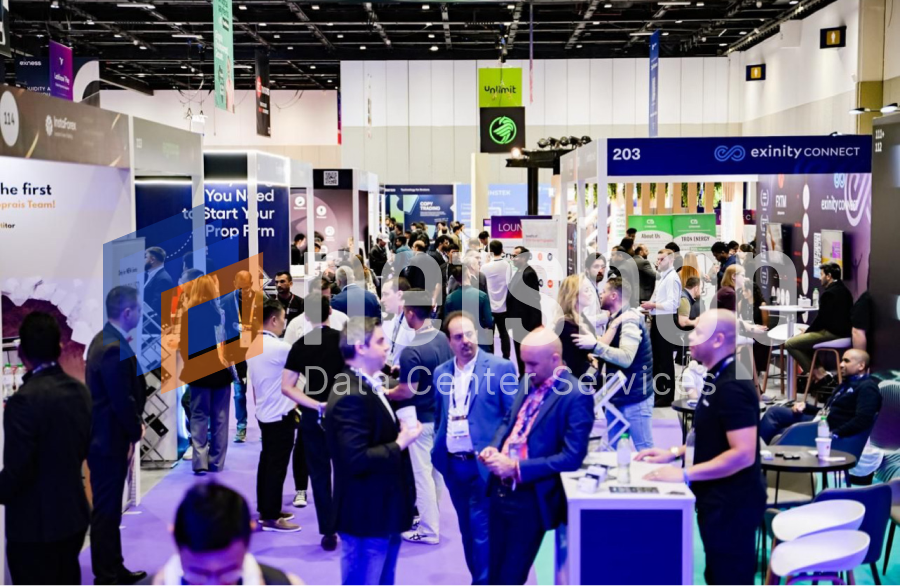
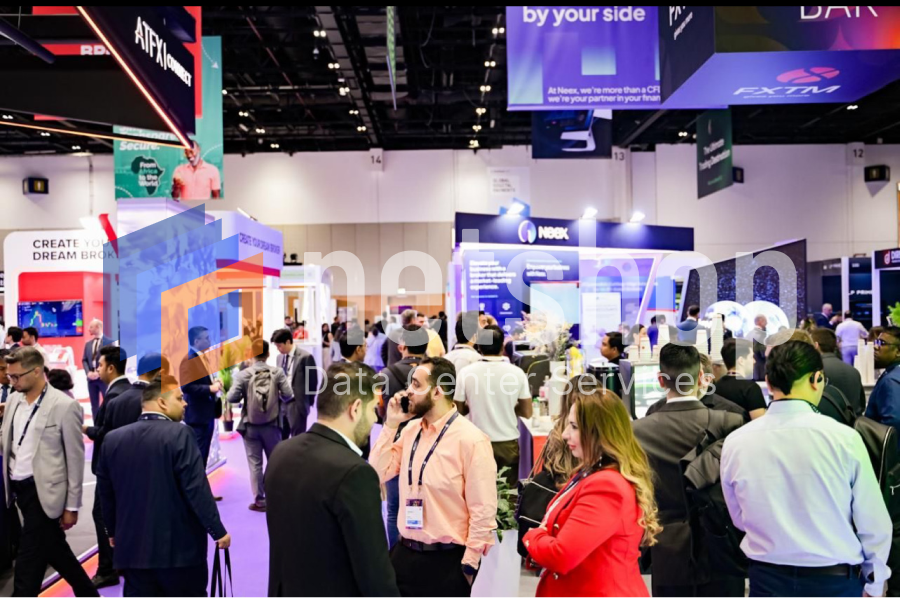
NetShop ISP is pleased to announce its successful participation in the iFX EXPO Dubai 2025, held from January 14 to 16 at the Dubai World Trade Centre. This premier event brought together over 10,000 professionals from the financial services industry, including brokers, investors, and technology providers.
Day #1 at IFX EXPO 2025 DubaiDay #2 at IFX EXPO 2025 Dubai
At the expo, NetShop ISP showcased a suite of hosting solutions tailored for the forex and fintech sectors. Key offerings included:
Trading Platforms Hosting: Dedicated servers optimized for MT4 and MT5 platforms powered with new generation CPU and fast NVMe storage.
Premium Bandwidth & Connectivity: High-speed, low-latency network infrastructure designed to meet the demands of high-frequency trading environments.
Forex VPS with API: An API-enabled service allowing brokers to offer ultra-low latency VPS servers to traders, enhancing trading performance.
DDoS Protection Service: Robust mitigation solutions to safeguard online businesses from potential cyber threats, minimizing downtime and ensuring business continuity. Learn more about Forex DDoS Protection service here.
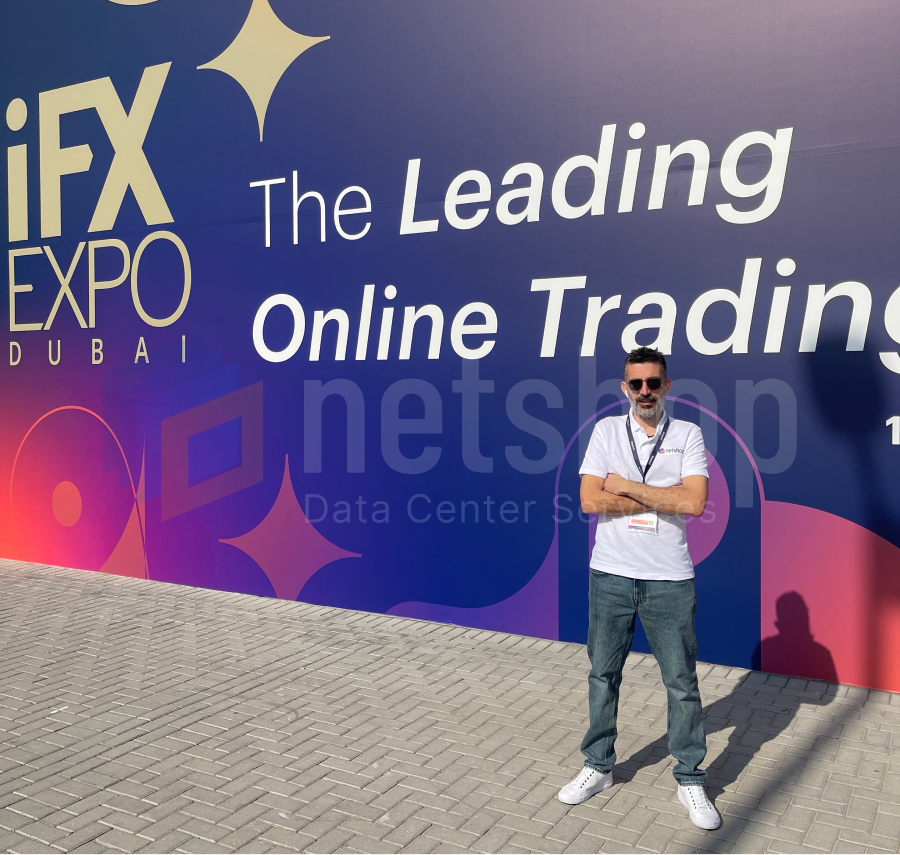
Stefano Sordini, CEO NetShop ISP, at iFXEXPO Dubai 2025
Stefano Sordini, CEO of NetShop ISP, engaged with partners and clients throughout the event, discussing the company’s recent global infrastructure expansions and reaffirming its commitment to delivering cutting-edge hosting solutions for the financial services industry.
One of the key highlights of NetShop ISP’s presence at iFX EXPO Dubai 2025 was the unveiling of its newly optimized infrastructure for high-frequency trading and algorithmic platforms. This infrastructure, now available in key global financial hubs within the Equinix IBX (LD4, LD7, SG5), offers brokers and trading firms unmatched reliability and speed, which are critical for maintaining a competitive edge in today’s markets. Attendees were also impressed with the company’s flexible Forex VPS solutions, which cater to traders of all levels, from retail users to institutional investors.
NetShop ISP to Announce Expansion in New Data Centers during the iFX EXPO Dubai 2025
NetShop ISP to Attend iFX EXPO Dubai 2025 and Announce Expansion in New Data Centers.
NetShop ISP, a leading global hosting provider, is thrilled to announce its participation in the upcoming iFX Expo Dubai 2025, taking place from January 14-16 at the Dubai World Trade Centre. Known as the largest financial B2B expo, iFX Expo provides the perfect platform for us to connect with the global finance and trading community while unveiling our latest innovations and expansions.
Strategic Expansion in Asia and the United States
As part of our ongoing commitment to supporting the financial industry’s growing demands, NetShop ISP will announce the expansion of its infrastructure within two new state-of-the-art data centers. These new facilities are located within the prestigious Equinix International Business Exchange (IBX) in flagship financial hubs:
Singapore (South-East Asia): A key market for Forex and financial trading, this facility is strategically positioned to offer low-latency connectivity and robust infrastructure to cater to the region’s burgeoning demand for reliable hosting solutions.
New York, USA: Situated in one of the leading financial centers, this new data center provides unparalleled connectivity and support for financial institutions and fintech providers.
Tailored Solutions for the Financial Industry
At iFX EXPO Dubai, NetShop ISP will showcase its specialized hosting solutions designed to meet the unique requirements of the finance and trading sectors. These include:
Low-Latency Trading Infrastructure: Optimized network infrastrucure that facilitates low-latency and secure connectivity between Forex brokers and Liquidity Providers.
Scalable Cloud Solutions: Off-the-shelf and purpose-built cloud hosting solutions for Brokers, CRM and other technology providers within the financial services industry.
Managed DDoS Protection: Advanced DDoS protection offered within NetShop’s global data centers infrastructure.
Stefano Sordini, CEO, will represent NetShop ISP at the expo, alongside a team of fintech infrastructure experts. Visitors are encouraged to book a meeting to find out how our hosting solutions can empower their businesses and learn more about the capabilities of our new data centers.
“iFX Expo is an incredible opportunity to engage directly with the financial community and we’re eager to demonstrate how NetShop ISP is driving innovation and enabling success for FX brokers, fintech companies, and trading platforms worldwide.” said Stefano Sordini, CEO at NetShop ISP
Join Us in Shaping the Future of Financial Hosting
NetShop ISP invites attendees to discover how our global hosting solutions can elevate their operations. Whether you’re a broker, fintech startup, or trading platform, our team is ready to provide customized hosting solutions that match your needs. Book a Meeting.
How To Upgrade Server from Debian 10 (Buster) to Debian 12 (Bookworm)
This guide explains how to manually upgrade your Debian server from version 10 (Buster) to version 12 (Bookworm) safely and efficiently.
Upgrading your Debian server ensures you benefit from the latest features, security updates, and performance improvements. The latest stable Debian distribution (at the time of writing this tutorial) is Debian 12 (bookworm) 12.8.0.
This guide explains how to manually upgrade your Debian server from version 10 (Buster) to version 12 (Bookworm) safely and efficiently.
Important: Upgrading from Debian 10 (Buster) to Debian 12 (Bookworm) should typically be done in stages. Skipping an intermediate release (Debian 11, Bullseye) could introduce unexpected issues due to changes in dependencies and configurations. The recommended upgrade path is sequential: first from Debian 10 to 11, and then from 11 to 12.
Prerequisites
Before proceeding to the upgrade task, ensure the following:
In the following commands we assume you have root access on the server. In your case, if you will be using a sudo-privileged account, prepend the “sudo” to each command.
Edit /etc/apt/sources.list to replace all occurrences of buster with bullseye:
root@my-server:~# deb http://deb.debian.org/debian bullseye main contrib non-freeroot@my-server:~# deb http://security.debian.org/debian-security bullseye-security main contrib non-freeroot@my-server:~# deb http://deb.debian.org/debian bullseye-updates main contrib non-free
Save the file and exit.
Step 1.3: Perform Upgrade to Debian 11
Now that our sources list is updated, we are ready to proceed with the upgrade from Debian 10 to Debian 11.
Edit /etc/apt/sources.list to replace all occurrences of bullseye with bookworm:
deb http://deb.debian.org/debian bookworm main contrib non-free deb http://security.debian.org/debian-security bookworm-security main contrib non-free deb http://deb.debian.org/debian bookworm-updates main contrib non-free
Save the file an exit.
Step 1.3: Perform Upgrade to Debian 12
Now that our sources list is updated, we are ready to proceed with the upgrade from Debian 11 to Debian 12.
If no errors appeared, proceed with a server restart using the following command:
root@my-server:~# reboot
Once the server is back online, confirm the system is running on Debian 12 using this command:
root@my-server:~# lsb_release -a
You can verify you are on Debian 12 if you see the following output:
No LSB modules are available.
Distributor ID:	Debian
Description:	Debian GNU/Linux 12 (bookworm)
Release:	12
Codename:	bookworm
Congratulations! You have successfully completed a gradual upgrade from Debian 10 to Debian 12!
Upgrading your server is an essential task for maintaining a secure and efficient environment. If you prefer expert assistance, NetShop ISP offers fully managed services for all server needs. Contact one of our server specialists today.
2024: A Landmark Year in NetShop ISP’s History
Reflecting on 2024: Read all that happened within a very successful year at NetShop ISP
As we conclude 2024, NetShop ISP proudly reflects on a year marked by significant achievements and milestones that have reinforced our position as a global leader in hosting and data center solutions.
Global Infrastructure Expansion
In July, we launched our private infrastructure within the LD4 Data Center, part of the Equinix International Business Exchange (IBX). This strategic expansion enables us to offer enhanced services, including Dedicated Servers, Virtual Private Servers (VPS), Colocation, Cross-connect, and DDoS Protection, to our clients seeking robust and reliable hosting solutions.
August witnessed our entry into the Latin American market with the introduction of NVMe-powered VPS plans in São Paulo, Brazil. This development underscores our commitment to providing top-tier services to a broader clientele and meeting the growing demand for high-performance hosting solutions in the region.
Product Enhancements and Innovations
Our dedication to continuous improvement is evident in the series of product enhancements introduced throughout the year:
May: We revamped our Status Updates interface, offering an improved user experience with better visibility of scheduled maintenance and reported incidents.
June: The rollout of NVMe-powered Cloud nodes in our Cyprus data center provided customers with the opportunity to deploy Virtual Servers featuring blazing-fast NVMe storage.
July: We unveiled bespoke virtual server plans designed specifically for provisioning Access Servers for the popular FX trading platforms MetaTrader 4 and MetaTrader 5, catering to the unique requirements of the trading community.
August: The introduction of our Firewall Management Tool (FMT) in beta allowed customers with Windows virtual and dedicated servers to seamlessly manage their Windows Firewall directly from the myNetShop portal.
September: We completed a significant network infrastructure upgrade at our LD7 facility, increasing our public network capacity to 10G. This enhancement benefits customers with Dedicated Servers, VPS, and co-located equipment, ensuring faster and more reliable connectivity.
October: The launch of Smart Search enhanced the navigation experience within the myNetShop Portal, enabling customers to search for invoices, service labels, IP addresses, ticket subjects, and more with ease.
November: We implemented major UI improvements to the myNetShop Portal, including the introduction of a dark theme, a redesigned service details page, enhanced VPS service management with detailed resource utilization graphs, and improved product order pages for better service customization.
“The innovations we’ve introduced this year reflect our focus on delivering cutting-edge solutions that empower our clients to succeed in a rapidly changing digital landscape.”
— Yiota Pingou, Head of Development
Industry Engagements and Milestones
Our active participation in key industry events has been instrumental in fostering innovation and collaboration:
October: At the Forex Expo Dubai 2024, we showcased our cutting-edge hosting solutions tailored for the financial services industry, reinforcing our commitment to supporting the forex trading community. Read the Article
December: We led conversations on AI trading at the Cyprus Fintech Summit 2024, highlighting our role as a trusted partner to the global fintech community and our dedication to advancing technological integration in financial services. Read the Article
“Our achievements in 2024 are a testament to our team’s dedication and our commitment to meeting the evolving needs of our clients. We look forward to building on this momentum in the coming year!”
— Elena Efthymiou, Operations Manager
Celebrating 20 Years of Excellence
This year also marked our 20th anniversary—a significant milestone that reflects two decades of innovation, growth, and unwavering commitment to excellence in hosting and data center solutions. Founded in 2004 in Cyprus, NetShop ISP has evolved from a local web hosting provider to a global leader with a presence in key markets worldwide. Read the Press Release
Looking Ahead
As we prepare for 2025, we remain steadfast in our mission to deliver exceptional hosting solutions, expand our global footprint, and drive innovation in the industry. We extend our heartfelt gratitude to our clients, partners, and team members for their continued support and collaboration!
NetShop ISP Leads Conversations on AI Trading at Cyprus Fintech Summit 2024
Event Highlights: NetShop ISP Empowering the Cyprus Fintech Summit 2024
NetShop ISP, a leading data center and hosting provider, proudly marked its successful participation at the Cyprus Fintech Summit 2024, further solidifying our position as a trusted partner to the global fintech community. As a long-standing partner of the Cyprus Fintech Summit and the official web hosting sponsor for the event, NetShop ISP highly contributed to the event’s success this year.
Held in the vibrant city of Limassol, the Cyprus Fintech Summit 2024 brought together industry leaders, innovators, and visionaries to discuss the evolving landscape of financial technology. The summit served as an essential platform for exchanging ideas, fostering partnerships, and exploring cutting-edge advancements in fintech.
Highlighting Our Role as the Official Web Hosting Sponsor
As the official web hosting sponsor, NetShop ISP ensured that the digital backbone of the event functioned seamlessly. From managing the summit’s official website to providing critical backend support, our hosting infrastructure played a key role in delivering a flawless experience for attendees, whether onsite or participating remotely.
“We are proud to have leveraged our reliable hosting solutions to uphold the summit’s reputation for excellence, enabling real-time updates, seamless registration processes, and an uninterrupted digital presence throughout the event“, said Stefano Sordini, CEO at NetShop ISP.
A Pioneering Discussion on AI Automation in Trading
One of the most anticipated sessions of this year’s summit was the panel discussion titled “The Future of Forex and Crypto Trading with AI Automation”, organized and moderated by our CEO, Stefano Sordini. The session brought together prominent figures from the forex, crypto, and AI sectors, sparking a dynamic conversation about how automation and artificial intelligence are transforming the trading landscape.
Connecting with the Fintech Ecosystem
Beyond the panel discussion, our team actively engaged with summit participants, exchanging ideas on how robust hosting solutions can empower fintech companies to achieve scalability, security, and superior performance. From startups exploring blockchain technology to established forex brokers requiring low-latency environments, our tailored hosting services were a focal point of many discussions at the event.
We extend our gratitude to the Cyprus Fintech Summit organizers, our partners, and all the attendees who made this event a memorable experience. We look forward to continuing our collaboration and to shaping the future of financial technology together.
Black Friday & Cyber Monday Offer – 30% Lifetime Discount on VPS Plans
Black Friday & Cyber Monday 2024 Offer – 30% LIFETIME DISCOUNT ON ALL VPS PLANS!
NetShop ISP, a leading global hosting provider, announces its Black Friday & Cyber Monday 2024 Hosting Deal. Customers can enjoy a 30% lifetime discount on all Virtual Private Server (VPS) plans, making it the perfect time to secure high-performance hosting solutions for businesses, developers, and traders.
With 20+ years of expertise, NetShop ISP is trusted by organizations worldwide for its reliable and scalable hosting services. Our VPS plans are designed to meet the unique needs of businesses in diverse industries such as Forex, iGaming, Martech, and more.
Don’t miss this chance to secure a powerful VPS Server at an unbeatable price!
Check out the easiest guide on how to install Sendy on Ubuntu 22.04 Server
Sendy is a self hosted email newsletter application that lets you send bulk emails without restrictions or high costs that come with other commercial, “as-a-Service” newsletter platforms.
Sendy is very cheap ($69 one-time fee) and you can install it on your own server which gives you great control given the fact that your database will contain sensitive data of third-parties.
Whilst there are many articles explaining how to install Sendy on AWS, there are very few guides on how to install Sendy on a self-hosted server; this is what we will demonstrate in this article.
Easy Steps to Install Sendy on Ubuntu Server
Pre-requisites
Valid Sendy license – during your license purchase you will be asked to submit your Name, Email and Domain name. These will be needed afterwards so make sure you remember them.
Sendy application files – these are delivered to you upon the successful purchase of Sendy license.
SSH access on Linux Ubuntu server with ‘root’ or a sudo privileged account.
Note: All commands in this tutorial assume you are accessing the server using the root account. In any other case, please prepend “sudo” to each of the commands listed below.
Step 1: Install LAMP (PHP, Apache, MySQL/MariaDB)
Sendy software requires the LAMP stack to be installed. Please use the following commands on your Ubuntu server to install Apache2, PHP and MariaDB server.
NOTE: RUNNING ALL PARTS OF THIS SCRIPT IS RECOMMENDED FOR ALL MariaDB SERVERS IN PRODUCTION USE! PLEASE READ EACH STEP CAREFULLY!
In order to log into MariaDB to secure it, we'll need the current password for the root user. If you've just installed MariaDB, and you haven't set the root password yet, the password will be blank, so you should just press enter here.
Enter current password for root (enter for none): OK, successfully used password, moving on...
Setting the root password ensures that nobody can log into the MariaDB root user without the proper authorisation.
Set root password? [Y/n] Y New password: Re-enter new password: Password updated successfully! Reloading privilege tables.. ... Success!
By default, a MariaDB installation has an anonymous user, allowing anyone to log into MariaDB without having to have a user account created for them. This is intended only for testing, and to make the installation go a bit smoother. You should remove them before moving into a production environment.
Remove anonymous users? [Y/n] Y ... Success!
Normally, root should only be allowed to connect from 'localhost'. This ensures that someone cannot guess at the root password from the network.
Disallow root login remotely? [Y/n] Y ... Success!
By default, MariaDB comes with a database named 'test' that anyone can access. This is also intended only for testing, and should be removed before moving into a production environment.
Remove test database and access to it? [Y/n] Y - Dropping test database... ... Success! - Removing privileges on test database... ... Success!
Reloading the privilege tables will ensure that all changes made so far will take effect immediately.
Reload privilege tables now? [Y/n] Y ... Success!
Cleaning up...
All done! If you've completed all of the above steps, your MariaDB installation should now be secure.
Thanks for using MariaDB!
Step 2: Create Database for Sendy
Connect to your mysql server using command line using the root password you set in the previous step.
root@localhost:~$ mysql -uroot -p

MariaDB [(none)]> create database sendydb;
Create a user and grant it with full permissions on the database:
MariaDB [(none)]> GRANT ALL ON sendydb.* TO 'sendy'@'localhost' IDENTIFIED BY 'enter-strong-password-here';
Step 3: Upload Sendy software
Upon successful license purchase, a zip file containing the application files should have been delivered to you. Upload the zip on the /var/www/html/ directory of your server and proceed with unzip, as follows:
A new folder ‘sendy’ will be created under /var/www/html. In order to avoid having the /sendy/ in your URL, you can move the contents outside the /sendy/ folder, as follows:
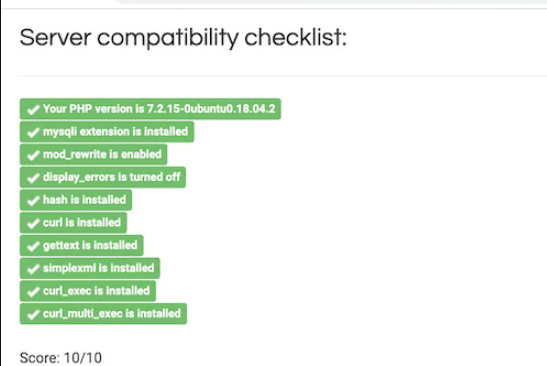
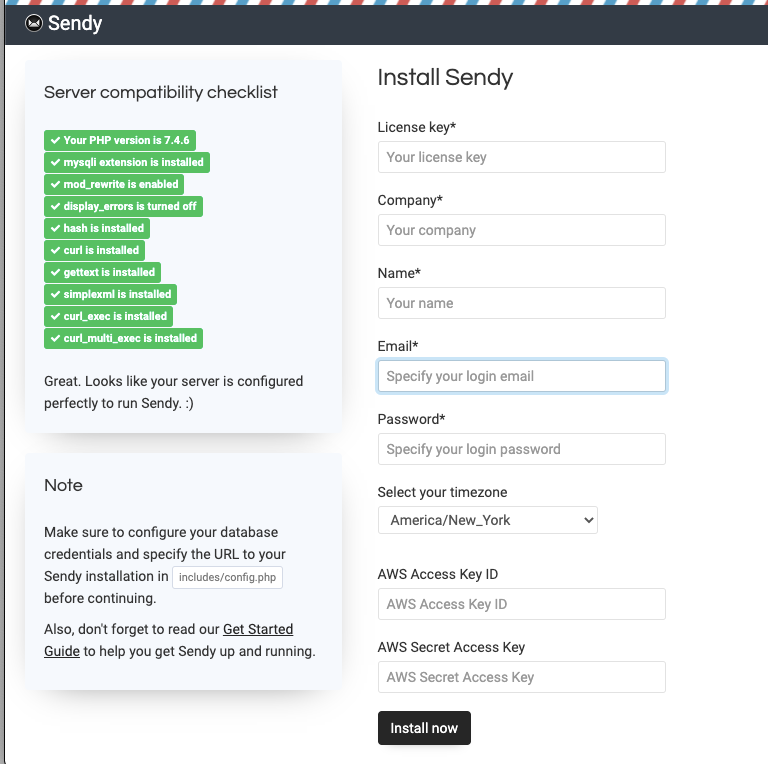
The last step of this tutorial is the easiest. Prior accessing the Sendy installation wizard, navigate to the following URL to confirm your server environment meets all requirements for Sendy:
https://<your_domain>/_compatibility.php?i=1
If everything has been installed as per this tutorial, you should see a 10/10 score which means you can proceed to installing Sendy.
Navigate to the following URL so you can begin the Sendy installation:
https://<your_domain>/_install.php
Complete the required fields as indicated in the installation wizard and click “Install now“.
Congratulations! You have successfully installed Sendy on Ubuntu 22.04 server!
Need Help? Have Sendy Installed for Free!
By purchasing any VPS or dedicated server from NetShop ISP, we can install Sendy completely free of charge. All we will need is the license key and the zip file which you have obtained when purchasing the Sendy license.
How To Extract Certificates and Private Key from .PFX file
In this article we will explain the reasons one may want to extract the certificates from a .PFX file and the exact steps on how to do it using openssl.
PFX (Personal Information Exchange) is a file format used to store cryptographic information in a single file. One type of information held within a PFX file is SSL Certificate chains along with the Private Key.
In this article we will explain the reasons one may want to extract the certificates from a .PFX file and the exact steps on how to do it using OpenSSL.
Why Extract Certificates from Single .PFX File
Extracting certificates and private keys from a .pfx file can be necessary in various scenarios, particularly when managing SSL/TLS certificates, application deployments, or secure communications.
1. Application Requirements
Some applications or servers require separate files for certificates and private keys instead of a combined .pfx file:
Web Servers Servers like Apache or Nginx require the private key and certificates to be in PEM format (.key and .crt files).
Load Balancers Many load balancers such as HAProxy require the certificate chain (.crt) and private key in specific formats.
Mail Servers Email software like Zimbra often require separate key and certificate files.
2. Compatibility & Migration
A .pfx file (PKCS#12) is mainly used in Windows systems whereas .pem, .crt and .key are using in Linux. For example, in cases when a wildcard SSL certificate is installed on a Windows Server and then a developer wants to install it in Linux, the certificates must be extracted from the .pfx file prior installing them on a Linux environment (web server, proxy, etc).
3. Easy Renewal & Replacement
Extracting the Private Key from a .PFX is useful in cases of SSL renewal, when one needs to quickly issue a renewed certificate, without going through the hassle of CSR generation.
Best Way to Extract Certificates and Private Key from PFX file
OpenSSL is the utility with which we can extract certifcates and private key from a .pfx file.
In Linux systems use the following command to install openssl:
Congratulations! If you followed the above steps you should have successfully extracted your desired certificates and private key from PFX file.
NetShop ISP CEO Stefano Sordini to Moderate Key Panel on Forex AI Automation at Cyprus Fintech Summit 2024
NetShop ISP, a global leader in hosting solutions, is pleased to announce that its CEO, Stefano Sordini, will be participating as a speaker at the Cyprus Fintech Summit 2024.
NetShop ISP, a global leader in hosting solutions, is pleased to announce that its CEO, Stefano Sordini, will be participating as a speaker at the Cyprus Fintech Summit 2024, taking place on December 6th at the Crowne Plaza Hotel in Limassol, Cyprus. Stefano Sordini will moderate a discussion panel titled “The Future of Forex and Crypto Trading with AI Automation,” where he and other prominent industry leaders will explore how AI-driven automation is transforming trading, financial services, and investment strategies in forex and cryptocurrency markets.
About the Cyprus Fintech Summit 2024
The Cyprus Fintech Summit is the country’s premier event dedicated to advancements in financial technology. The summit draws industry professionals, tech innovators, entrepreneurs, and thought leaders from across the region and beyond, offering a unique forum to discuss the future of fintech in a rapidly evolving digital landscape.
The event will feature insights from experts on emerging technologies, regulatory trends, and the growing impact of artificial intelligence across various sectors, including trading, banking, and blockchain.
NetShop ISP is the official web hosting sponsor of Cyprus FinTech Summit 2024.
Panel Discussion: “The Future of Forex and Crypto Trading with AI Automation”
As moderator of the panel, NetShop ISP’s CEO will guide an in-depth conversation on the growing influence of AI automation in trading. Topics will include how brokers and traders can leverage machine learning and predictive analytics for enhanced trading strategies, the latest developments in AI-driven trading platforms, and the implications for market transparency and risk management.
About Stefano Sordini
Stefano Sordini is the CEO of NetShop ISP, a leading global hosting solutions provider celebrating its 20th anniversary this year. Under his leadership, NetShop ISP has expanded its presence with data centers worldwide, including major financial and tech hubs like Equinix LD4, LD6, LD7 in London, and SG5 in Singapore. Known for its pioneering infrastructure, NetShop ISP serves a broad array of industries, including fintech, iGaming, MarTech, and ICT, consistently providing cutting-edge solutions to meet the needs of organizations across the globe. With a background in financial technology and IT infrastructure, Stefano is an advocate for innovation and digital transformation within fintech, making him a fitting voice for this impactful discussion.
Preparing for the Daylight Saving Time (DST) Change: Essential Updates for MetaTrader 4/5 Platforms
As Daylight Saving Time (DST) approaches, it’s important to understand how this change affects your MetaTrader 4 (MT4) and MetaTrader 5 (MT5) trading platforms and what steps are necessary to ensure smooth operations.
As Daylight Saving Time (DST) approaches, it’s important to understand how this change affects your MetaTrader 4 (MT4) and MetaTrader 5 (MT5) trading platforms and what steps are necessary to ensure smooth operations. This guide explains what’s changing, why it matters, and how to adjust your server timezone settings accordingly.
What Does the DST Change Mean?
In regions that observe DST, clocks will soon shift by one hour. For those using GMT+2 (Athens) time, this typically involves setting clocks back an hour in the fall and forward an hour in the spring. This adjustment helps keep local time aligned with daylight hours, but it also has significant impacts on time-sensitive systems, such as trading platforms.
Why is DST Important for MT4 and MT5 Trading Platforms?
MetaTrader 4 and MetaTrader 5 platforms are heavily time-dependent. The platform relies on accurate timestamps to handle trades, log history, and maintain alignment with market hours. Incorrect server times can result in:
Order Execution Issues Orders may execute at incorrect times if the server time isn’t aligned with the market, leading to potential losses or missed trading opportunities.
Inaccurate Trading Data Trading charts, reports, and history logs may show inaccurate times, making it harder to analyze performance and market trends.
Data Consistency Across Servers Any additional servers that send or receive data to/from MT4/MT5 must match the main server’s time settings to ensure smooth data flow and prevent errors.
How to Update Your Server Timezone Settings
Depending on the current timezone settings configured on your MT4/5 platform and the server itself, you may or may not need to do any changes. All forex brokers must get advise from their respective trading platform administrator whether any changes are required.
How to Update Timezone on Windows Server 2022
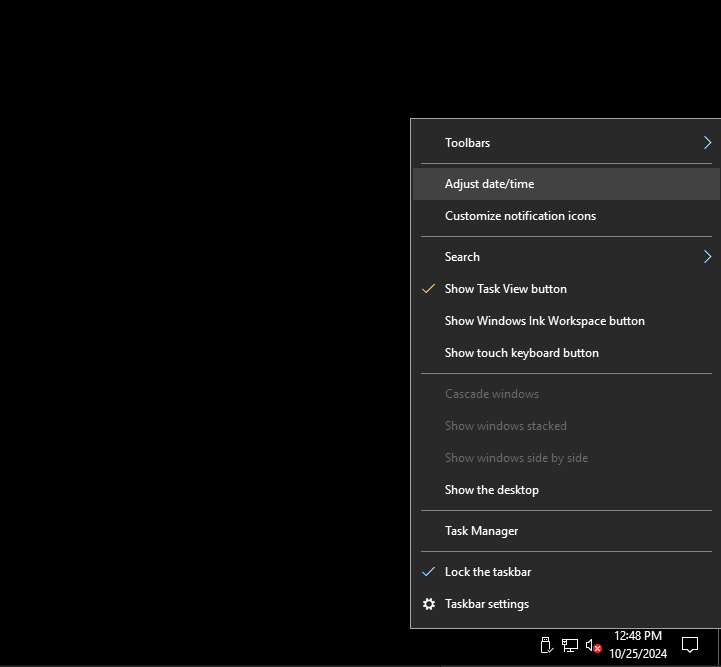
From the bottom right of your windows server screen, right-click on the server’s time so you get prompted with the popup menu as shown in the screenshot below.
Then click Adjust date/time.
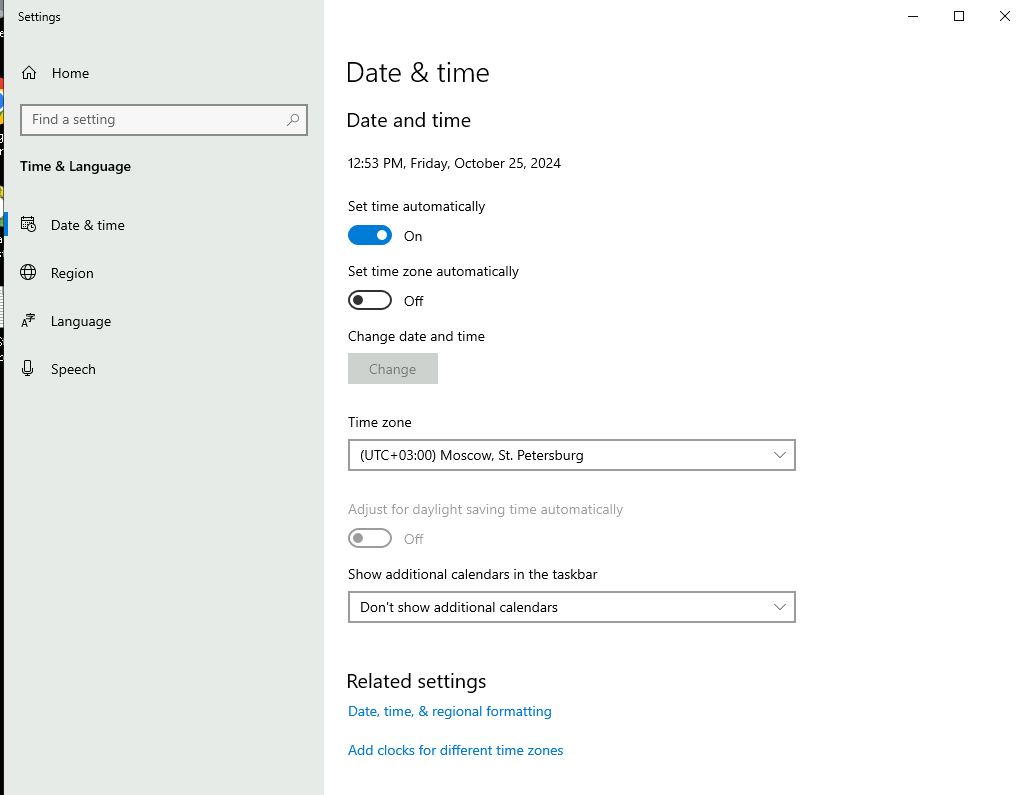
On the new window you will be presented with the current time zone settings. In our example, the server is currently configured with UTC+3 Moscow, St. Petersburg which is not impacted by DST changes.
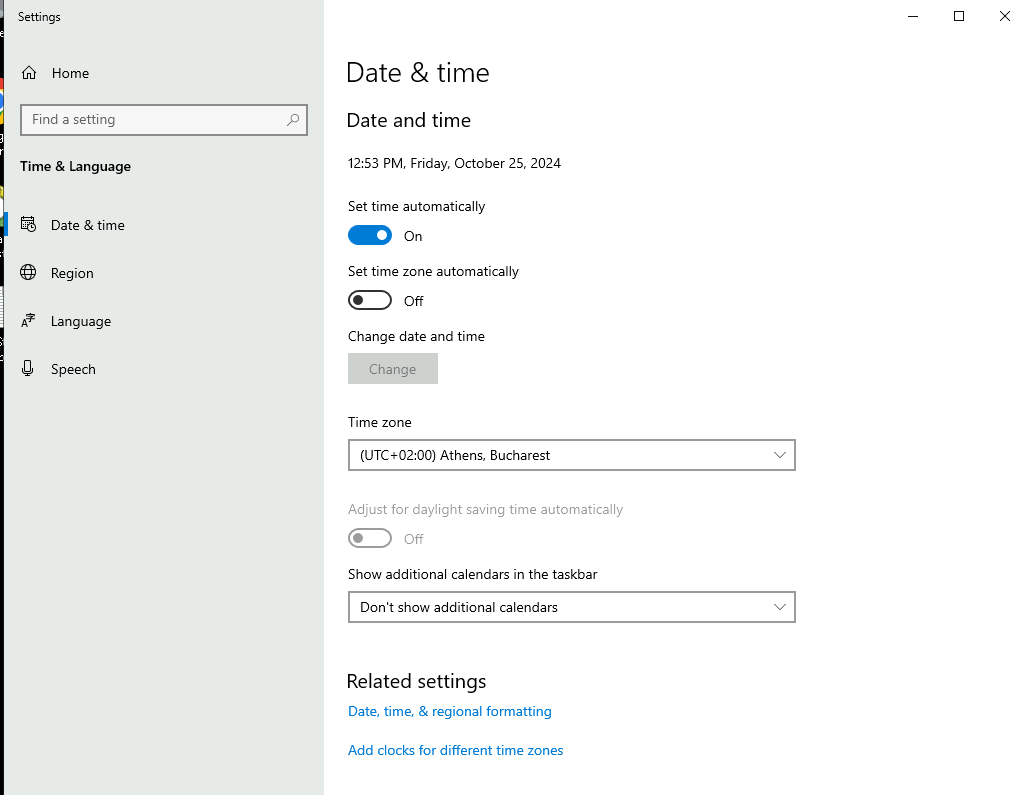
So in this case, we will change the time zone to: (UTC +02:00) Athens, Bucharest.
Ensure the option “Set time automatically” is On and then close the window.
Make sure that the time on your server has changed to reflect the correct time with DST, from the bottom-right of your server’s window.
Final Reminder
Making these updates before the upcoming FX trading market opening will prevent unnecessary complications and ensure your trading platforms operate smoothly. If you need assistance or have any questions, don’t hesitate to reach out to our support team.
Customers subscribed to NetShop’s Premium SLA are entitled to a free hands-on assistance for this task.
NetShop ISP Celebrates 20 Years of Innovation and Excellence in Hosting and Data Center Solutions
NetShop ISP, a global leader in web hosting and data center services, is proud to celebrate its 20th anniversary. Over the past two decades, NetShop ISP has grown from a local service provider to an international powerhouse, renowned for its innovative solutions, exceptional customer service, and commitment to technological excellence.
NetShop ISP, a global leader in web hosting and data center services, is proud to celebrate its 20th anniversary. Over the past two decades, NetShop ISP has grown from a local service provider to an international powerhouse, renowned for its innovative solutions, exceptional customer service, and commitment to technological excellence.
A Journey of Growth and Innovation
Founded in 2004 in Cyprus, NetShop ISP began with a vision to provide reliable and affordable web hosting solutions to local businesses. The early years saw steady growth as the company expanded its offerings to include dedicated servers, colocation services, and managed hosting solutions. By consistently focusing on customer satisfaction and technical support, NetShop ISP quickly established a reputation for excellence in the industry.
2004: NetShop ISP is founded in Cyprus, launching its first range of web hosting services.
2006: Introduction of dedicated servers and colocation services, marking the company’s entry into the broader data center market.
2010: Expansion beyond Cyprus with the establishment of data centers in key locations across Europe and Asia, enhancing global service delivery.
2014: Launch of a suite of managed services, including security, backup, and disaster recovery solutions, catering to the growing demand for comprehensive IT support.
2018: Opening of new data centers in the United States and Asia, further extending NetShop ISP’s global reach and infrastructure capabilities.
2020: Strategic entry into the Forex and Fintech markets, marked by a significant expansion of infrastructure within Equinix data centers, achieving stunning growth and providing robust, low-latency solutions for financial trading platforms.
2022: Achievement of multiple industry certifications, including ISO 9001, reinforcing the company’s commitment to information security and quality management.
2023: Recorded a substantial growth of 75% increase in new customers and 25% increase in profits.
2024: Infrastructure expansion within the Equinix London LD7 and and LD4 Data centers offering Dedicated and Virtual Servers, DDoS Protection and Cross-connect Services.
Serving Key Markets: iGaming, Forex, and ICT
NetShop ISP has established itself as a leading provider in several key markets, including iGaming, Forex, and Information and Communications Technology (ICT).
iGaming: The company serves some of the biggest names in the online gaming industry, providing high-performance hosting solutions that ensure seamless, uninterrupted gaming experiences. NetShop ISP’s robust infrastructure supports the complex needs of online casinos, sports betting sites, and gaming platforms, delivering low latency and high availability.
Forex: Entering the Forex market in 2020, NetShop ISP has become a trusted partner for financial trading platforms. By leveraging Equinix data centers, the company offers low-latency, high-performance hosting solutions critical for real-time trading operations. This infrastructure ensures that Forex clients can operate with the speed and reliability necessary to succeed in the highly competitive trading environment.
ICT: NetShop ISP provides a wide range of services to the ICT sector, including cloud hosting, disaster recovery, and managed services. The company’s solutions are designed to support the dynamic and evolving needs of technology firms, offering scalable, secure, and reliable infrastructure that enhances operational efficiency and innovation.
Pioneering Technological Advancements
NetShop ISP has always been at the cutting edge of technology. The company’s entry into the Forex and Fintech markets in 2020 represented a pivotal moment, leveraging the infrastructure within Equinix data centers to offer unparalleled low-latency and high-performance solutions tailored to the needs of financial trading and technology firms. This strategic move enabled NetShop ISP to deliver enhanced connectivity, security, and scalability, cementing its position as a preferred provider for the financial sector.
Commitment to Customer Excellence
Throughout its 20-year journey, NetShop ISP’s commitment to customer excellence has remained unwavering. The company offers 24/7 support and personalized service to meet the unique needs of each client. This dedication has earned NetShop ISP numerous awards and a loyal customer base that spans industries such as finance, gaming, e-commerce, and media.
“Their customer support team is always responsive and helpful, ready to assist with any queries or technical issues I encounter. The setup process was straightforward, and any minor issues were quickly resolved by their knowledgeable staff.” by Panayiotis Theodoulou on TrustPilot.
“I am an IT consultant for Forex brokers and i was referred to NetShop ISP by one of my existing customers. For the past 18 months i have been dealing almost on a daily basis with the guys at NetShop ISP for all my customers’ infrastructure, dedicated servers and forex vps needs.” by Stephen Surein on TrustPilot.
Looking to the Future
As NetShop ISP celebrates this significant milestone, the company is focused on the future. Plans are underway to expand its data center footprint further, with new facilities planned in emerging markets. Additionally, NetShop ISP is exploring new technologies such as edge computing and blockchain to stay ahead of industry trends and continue delivering innovative solutions to its clients.
“Reaching our 20th anniversary is a testament to the hard work and dedication of our team, and the trust and loyalty of our customers. We are excited about the future and remain committed to delivering the best possible services and solutions to our clients around the world.” said Stefano Sordini, CEO at NetShop ISP.
About NetShop ISP
NetShop ISP is a leading provider of web hosting, dedicated servers, colocation, and managed services with a global presence. With state-of-the-art data centers in multiple countries and a reputation for excellence, NetShop ISP delivers reliable, secure, and scalable solutions to businesses of all sizes.
Website: https://netshop-isp.com.cy Link to this PR: https://netshop-isp.com.cy/blog/netshop-isp-celebrates-20-years-of-innovation-and-excellence-in-hosting-and-data-center-solutions